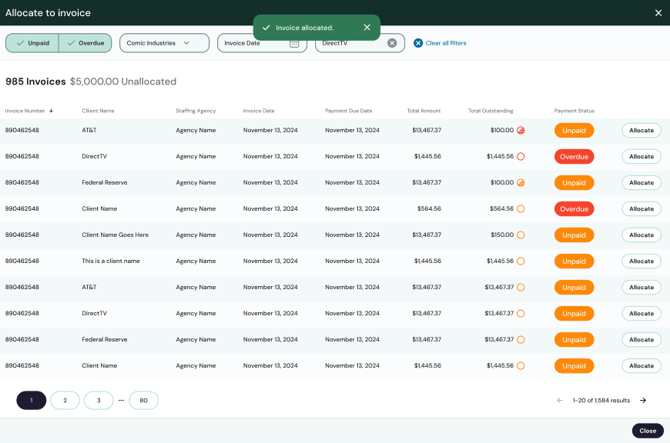
When a payment arrives and is not automatically matched, Cartwheel flags it as unallocated. This gives your team an easy way to identify when human review is needed.
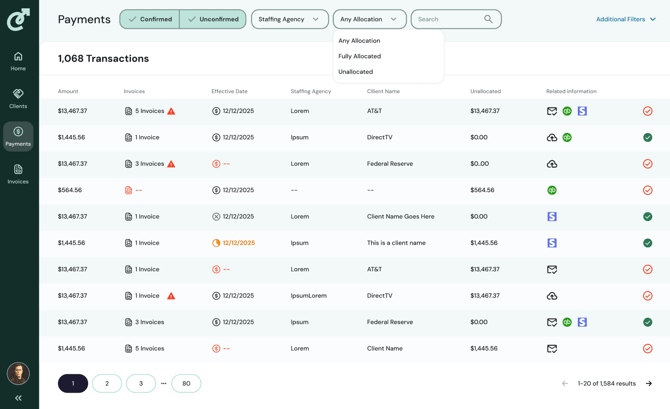
From the Payments tab,click on an invoice that shows an unallocated balance. Once you click, you will see the transaction details.
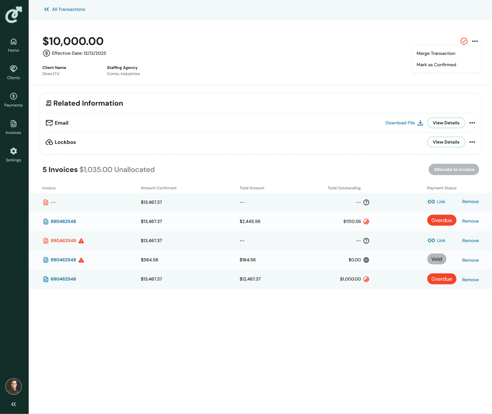
For unmatched payments, simply click Allocate to Invoice to select the correct invoice or invoices, including for partial or split payments. This will bring you an Allocate to invoice page that will list the invoices for that client that have a balance due.
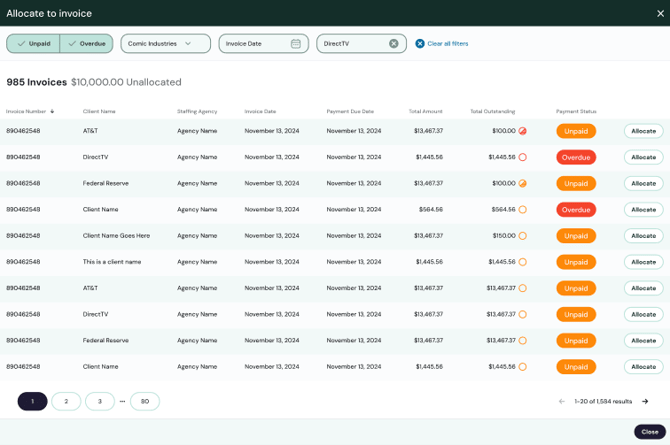
Once you identify which invoice/s you'd like to allocate the payment for, click Allocate. A dialog box with the invoice details will appear. In the dialog box, select whether you want to apply the total amount of the payment or other (and then enter the amount to apply), and click Allocate button. You will return to the Allocate to invoice scren that will reflect the allocation and see a message that confirms it.