
About this Article
This article walks you through the technical steps to configure surcharges in Cartwheel. It does not constitute legal or compliance advice.
⚠️ Credit Card Surcharge Disclaimer
The credit card surcharge feature may be subject to applicable laws, regulations, and card network rules, which can vary by jurisdiction. By enabling this feature, you acknowledge and agree that it is your sole responsibility to understand and comply with all such legal and regulatory requirements. You are strongly encouraged to consult with qualified legal counsel prior to activating or using this feature.
Cartwheel does not provide legal advice and makes no representations or warranties regarding the legality, enforceability, or compliance of any surcharge practices implemented through its platform. By proceeding, you agree that Cartwheel shall not be held liable for any claims, penalties, or damages arising from your use of this feature
Surcharge FAQs
What is a surcharge?
Surcharging allows you to recoup fees (typically 2-3%) on a credit card transaction to offset the cost of acceptance. It’s capped at the cost of acceptance (you cannot profit from surcharging).
What do they apply to?
They apply to credit cards only–not debit/prepaid, ACH debit, or bank transfers.
Do I need to disclose surcharges to my clients?
Yes. Surcharges must be disclosed at the point of entry, checkout, invoices, and on receipts. Additional regulations may apply. Consult your legal counsel to understand all the disclosure requirements specific to your organization.
What happens if I issue a refund?
You must also refund the surcharge, either in full or prorated. Confirm the applicable rules with your legal counsel.
Can I charge a surcharge to all clients?
Surcharge regulations vary by state and country–and change frequently, which creates an ongoing compliance risk. You are responsible for knowing which rules apply to your business and keeping up with the changes. Consult your legal counsel before enabling surcharges on a regular basis thereafter.
How will my clients know a surcharge is being applied?
Required disclosure language and notification must appear at the point of entry, on the payment form, on invoices and receipts, and in saved payment methods, per card brand requirements. Cartwheel adds surcharge messaging on the point of entry in the application, the payment form, and saving a payment method for the first time. Cartwheel does not notify previously saved payment methods, which is often a requirement with associated timing. Additional requirements may apply. Ensuring full compliance is the customer’s responsibility.
Is sales tax applicable for surcharges?
It may be. Cartwheel does NOT apply sales tax to surcharges. Work with your counsel to determine your obligation to collect and remit sales tax on surcharges.
Enabling Surcharges
Before You Begin
Confirm the following before proceeding:
- You have consulted legal counsel and understand surcharge regulations in all states and countries where you do business.
- You know whether you intend to surcharge in high-risk states (See Step 3).
- You understand if you’re required to complete a Merchant Surcharge Disclosure Form(s).
- If required, you have already completed the Merchant Surcharge Disclosure Form(s) 30 days prior.
Pre-work: Merchant Surcharge Disclosure Form(s)
Before you begin. Understand if you need to complete the Merchant Surcharge Disclosure Forms for your organization. The requirements can change, and it your organization’s responsibility to maintain compliance. Once you have completed the form and waited the required 30 days, you may enable surcharges in Cartwheel.
Step 1: Open Global Client Settings
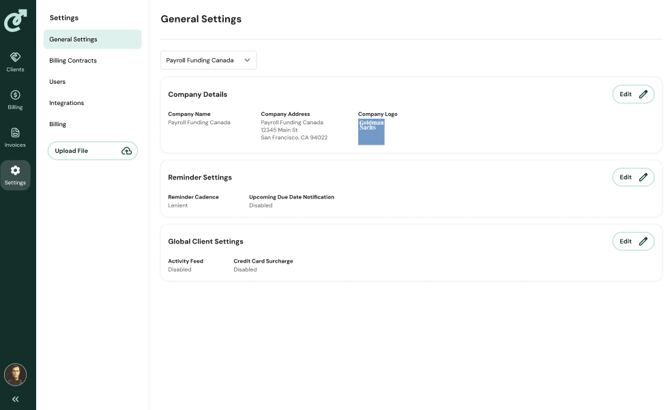
In your Cartwheel account, go to Settings in the left navigation. Then select Global Client Settings and click Edit.
Step 2: Enable Credit Card Surcharges
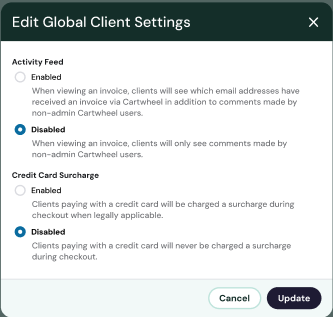
This will open a Global Client Settings dialog box.
Decide whether to apply surcharges in high-risk states by selecting the corresponding radio button, and clicking Update. Additional fields will appear once enabled.
Step 3: Choose Your High-Risk State Policy
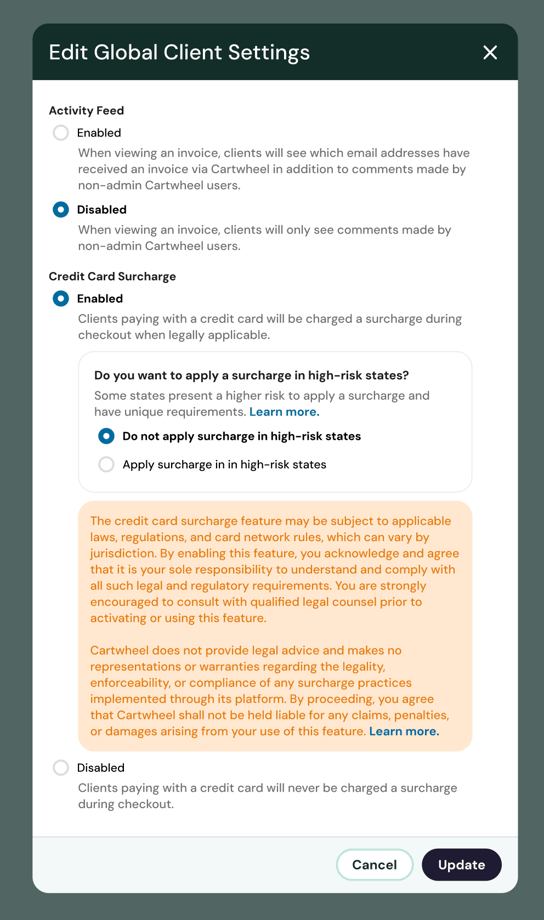
Some states impose additional requirements for surcharging, like specific warning language or website disclosures. Consult your legal counsel to understand what high-risk state compliance requires before making this selection. The default setting is Do not apply surcharge in high-risk states.
Step 4: Submit & Save
Click Update to save.
You’re all set. Cartwheel will begin processing surcharges effective immediately.