To edit or bulk edit client contacts, navigate by clicking on the clients tab of the navigation, then under the header "Clients" there are two tabs – Clients and Contacts. You can click on either to toggle between them.
Click on Contacts. This will show you all billing contract contacts. If a contact is added to multiple billing contracts they will display in the list multiple times.
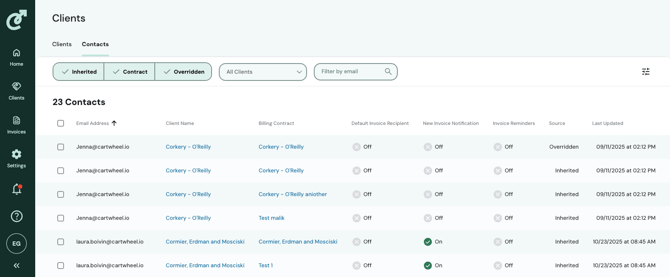
In Contacts you will see the contact's:
- Email address
- Staffing agency (only applicable if there are multiple entities or a parent company)
- Client Name of the billing contract contact
- Billing Contract of the billing contract contact
- Default Recipient
- Published notifications
- New Invoice notification
- Reminders
- Source (1- Inherited: inherited from the client contact, 2- Contract: created at the contract level, 3- Overridden: overriden from the client contact)
- Timestamp of last update
You can filter by source and search by specific clients. You can sort contacts alphabetically by email address, client name, billing contract, source, or chronologically by last updated.
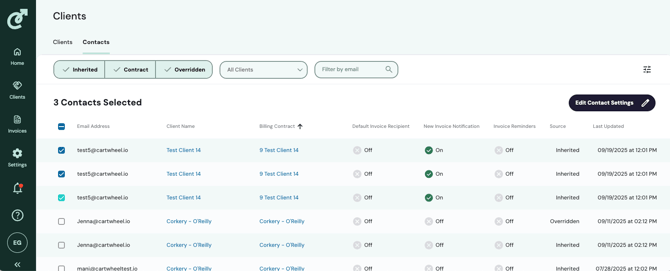
To bulk edit contacts, select the check boxes of the contacts you wish to edit. Click the black button Edit Contact Settings.
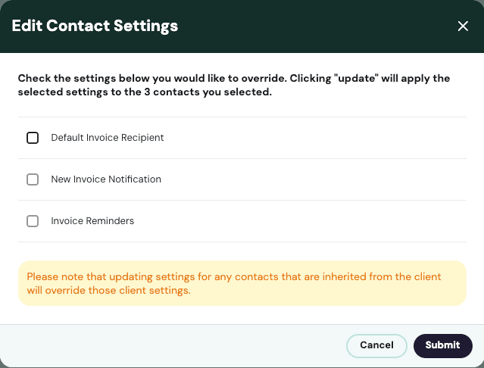
A dialog box will appear giving you the option to change or override these settings:
1) Default Invoice Recipient
2) New Invoice Notification
3) Invoice Reminders
Please note that updating settings for any contacts that are inherited from the client will override those client settings.
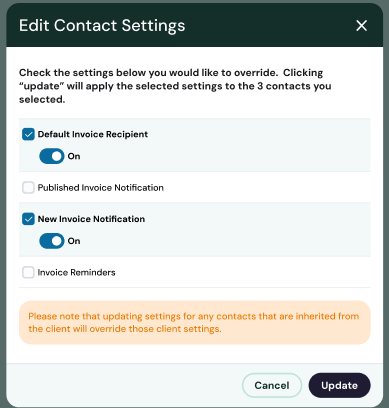
Select the settings you wish to update by checking the box and sliding the toggle to reflect your change. Then click Update.